








Get started: your first scene

You find an address, mark out the area and draw a building. You then have a 3D scene of the plot that you can keep building on.
Create the scene and draw your first building
-
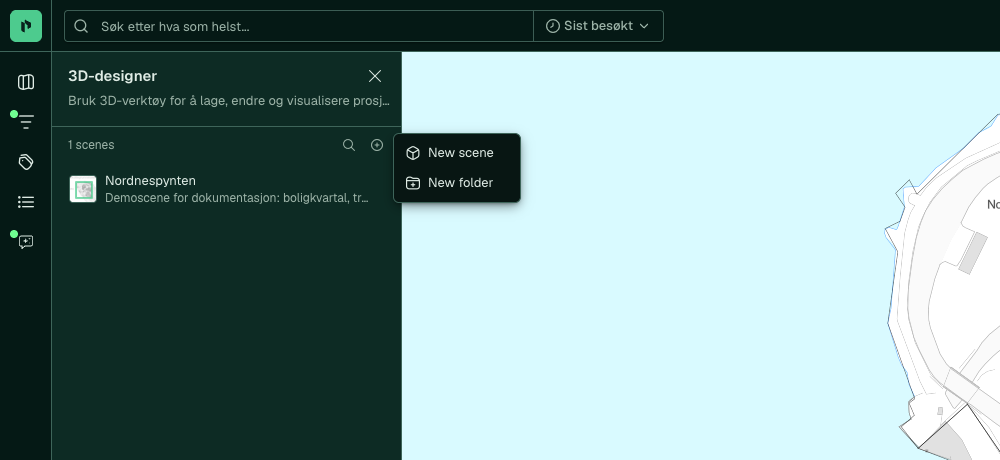
Open 3D Designer from the menu in Placepoint Fusion. Click New and select New scene. The map switches to full screen with a square frame.
-
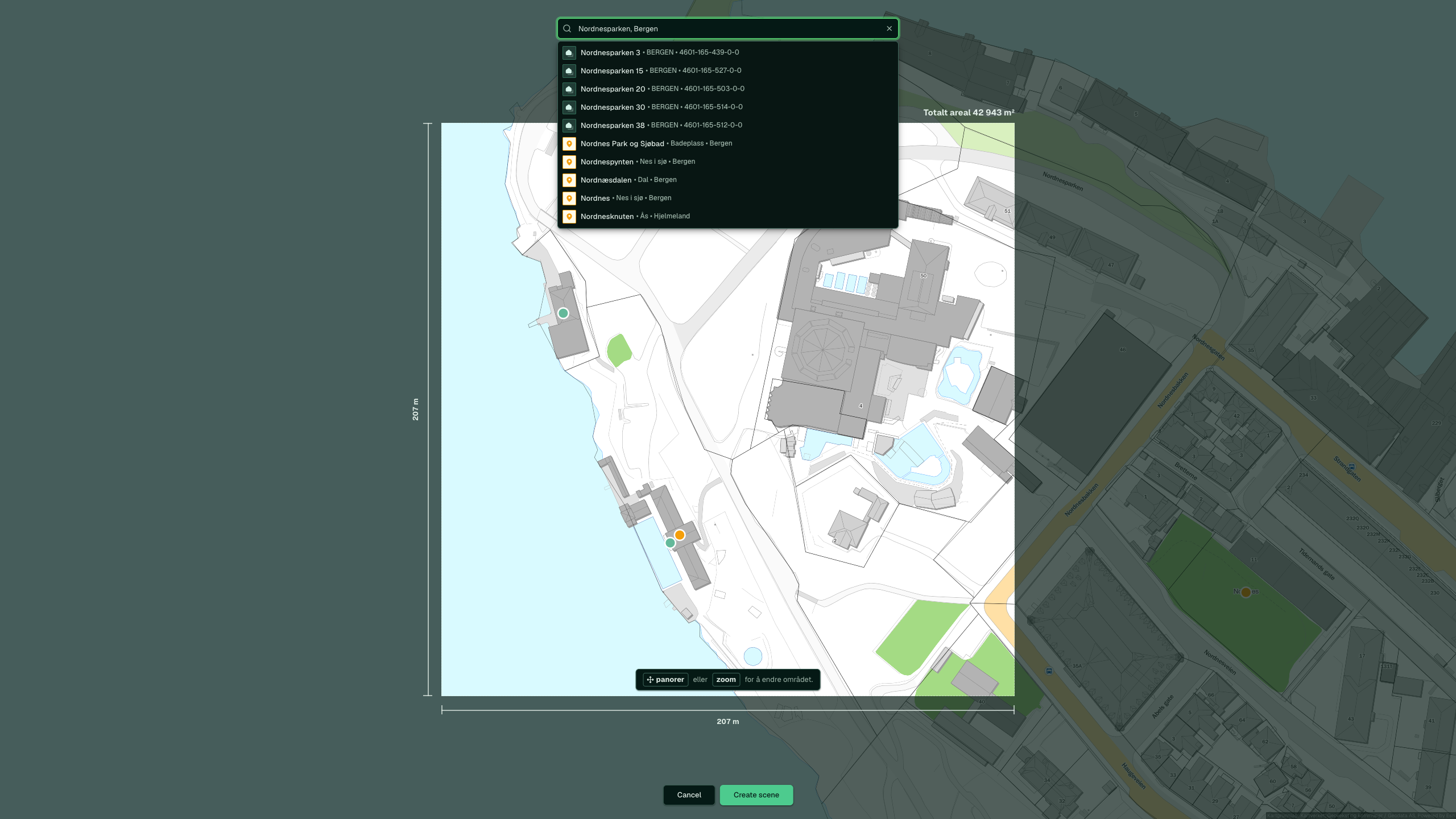
Type an address in the search field, for example “Nordnesparken, Bergen”, and click the result Nordnesparken 38. The map flies there.
-
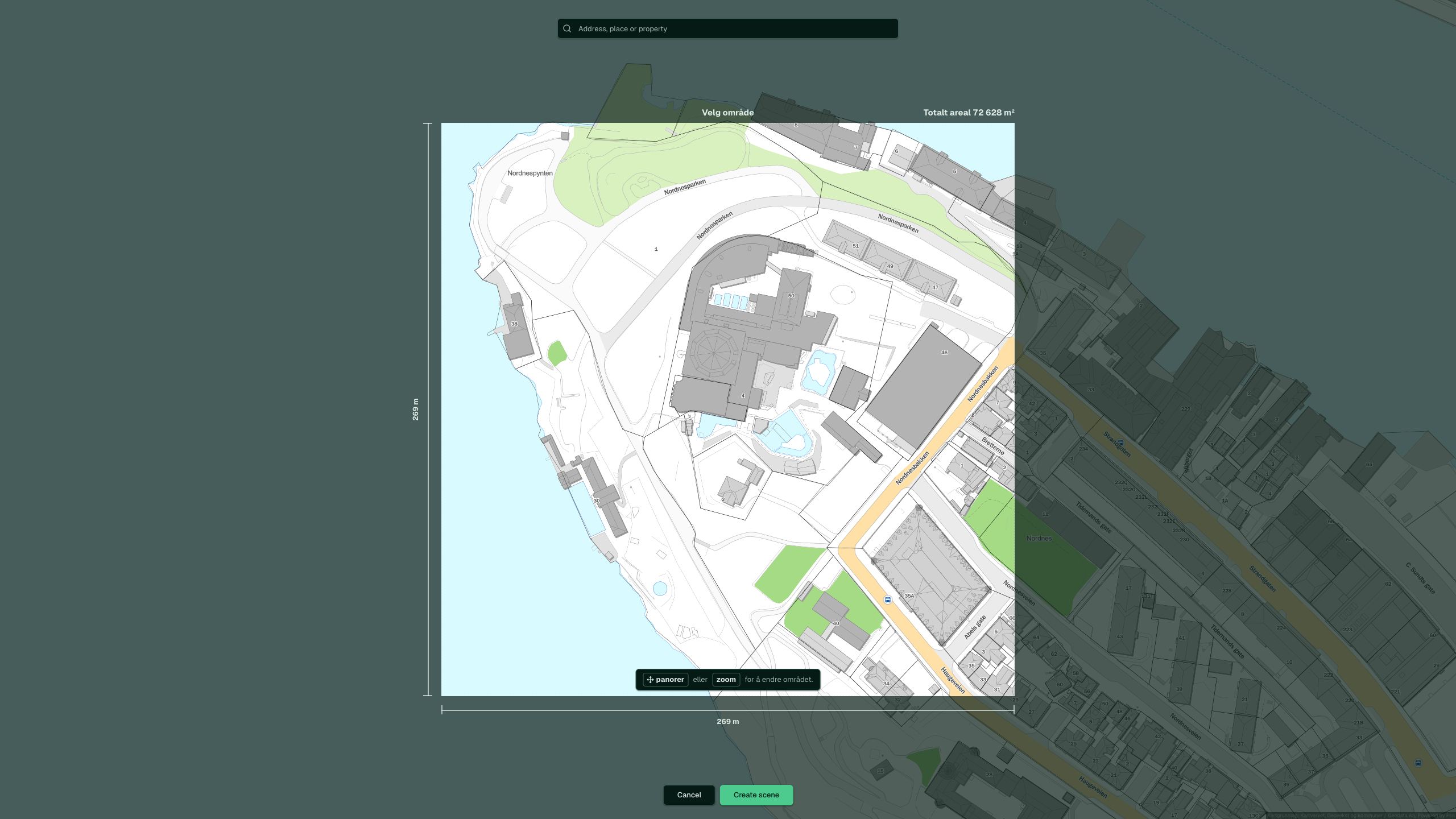
Pan and zoom until the frame covers the area you need. “Total area” above the frame shows the size. The frame can be from 10,000 m² to 1.00 km².
-
Click Create scene. The scene opens in 2D after a few seconds, and the surrounding buildings and trees load gradually.
-
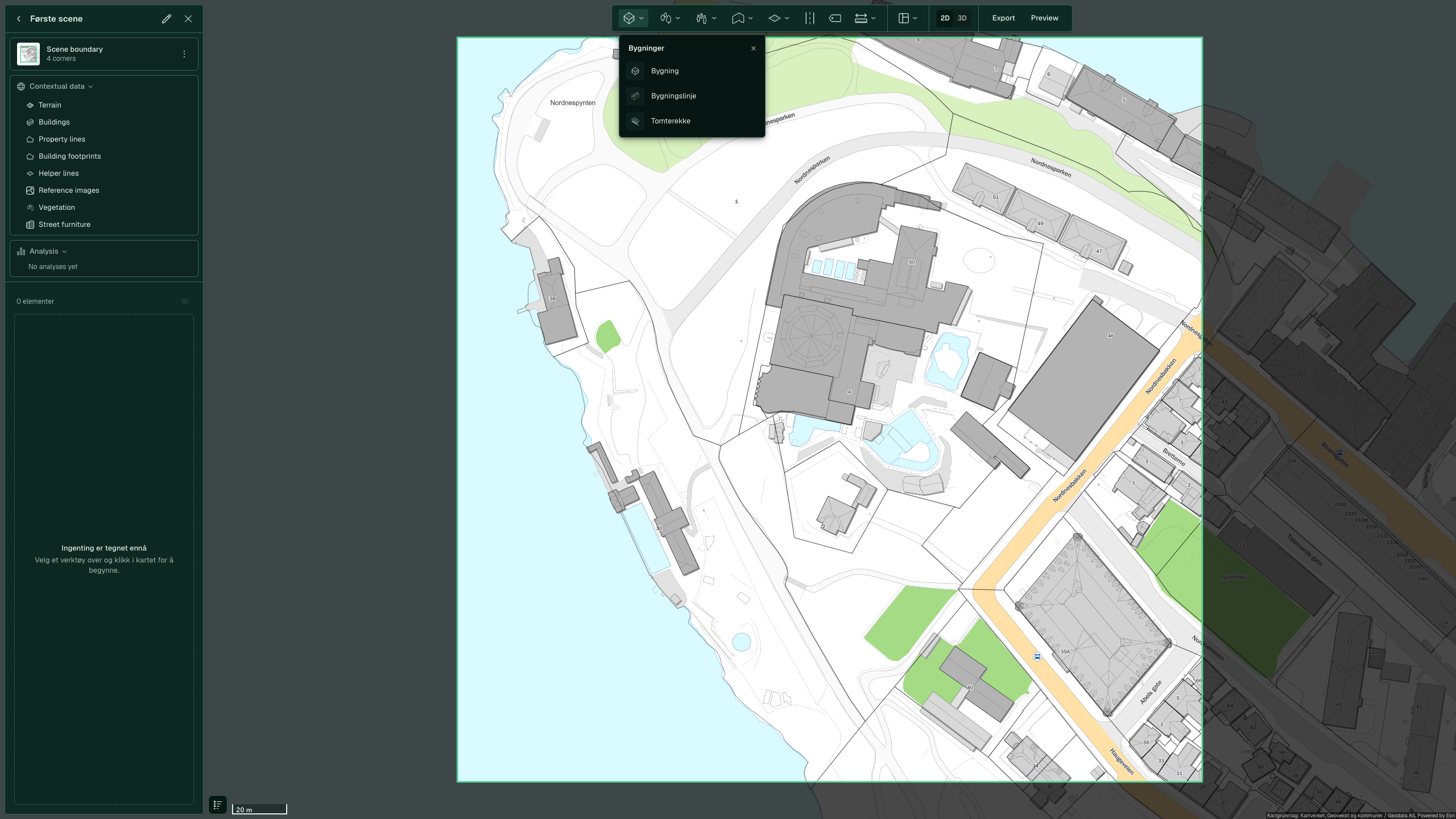
Click Buildings in the toolbar, select Building and click four corners on the map. Press Enter. While you draw, the map shows the length of each side and the area.
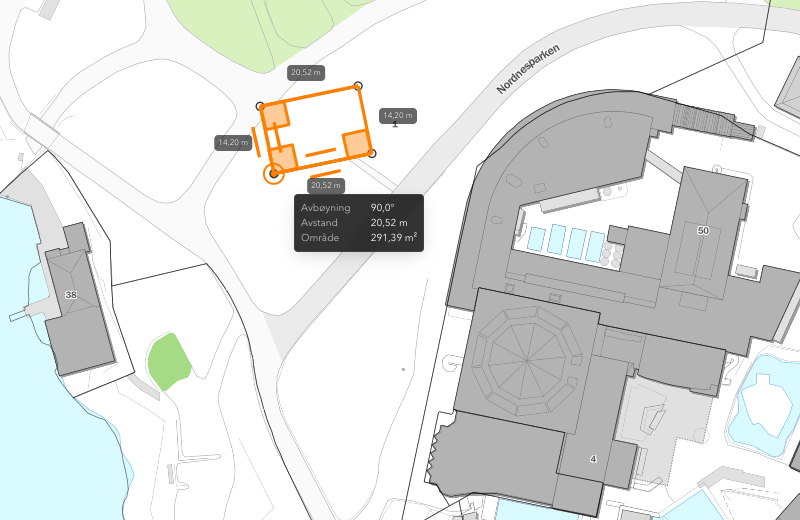
-
Type 4 in the first field of “Floors × height” and click 3D. The building stands on the plot, and you see it together with the buildings around it.
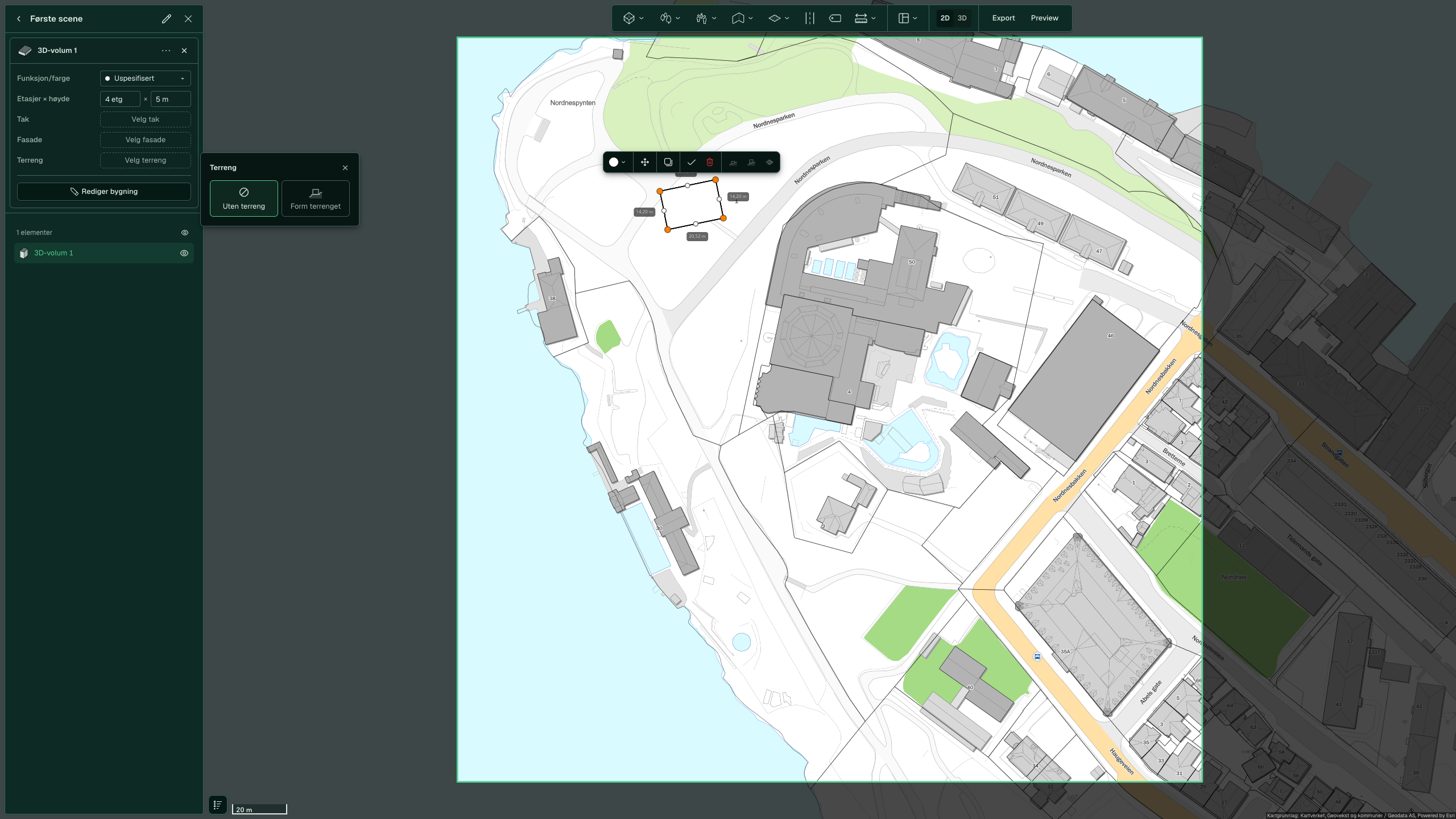


You do not need to save. The scene is stored on the server and is named “Scene” followed by the first available number. Click Edit name and description in the editing frame to give it a name of your own.

View the building from other angles
Zoom with the mouse wheel. Drag with the right mouse button to rotate and tilt the map.

See also
- Draw buildings for roofs, facades, function, building lines and plot rows. This is the next step.
- All tools and settings for the frame and the size limits
- Scenes, folders and saving for keeping things organised when you have several scenes